


Copilot in Excel: A Practical Guide for Professionals
 Arsénio Ferraz
 If you spend hours building complex formulas in Excel, formatting tables, or preparing data for analysis, Microsoft Copilot can save you considerable time. But for it to work effectively, you need to know how to trigger it and, most importantly, what to ask for. This practical guide shows you how to start using Copilot in Excel effectively, without exaggerated promises or unnecessary theory.
What is Copilot in Excel and what does it actually do
Copilot is an artificial intelligence assistant integrated directly into Excel, available to users with a Microsoft 365 Copilot subscription. It works through natural language: you write what you want to do, and Copilot executes or suggests the solution.
Unlike macro tools or VBA scripts that require programming knowledge, Copilot allows any intermediate Excel user to automate tasks and build analyses simply by describing the objective in English.
Practical example: instead of searching Google for “how to create a pivot table with unique values sorted”, you simply write “create a table with unique customers sorted by sales volume” — and Copilot does it.
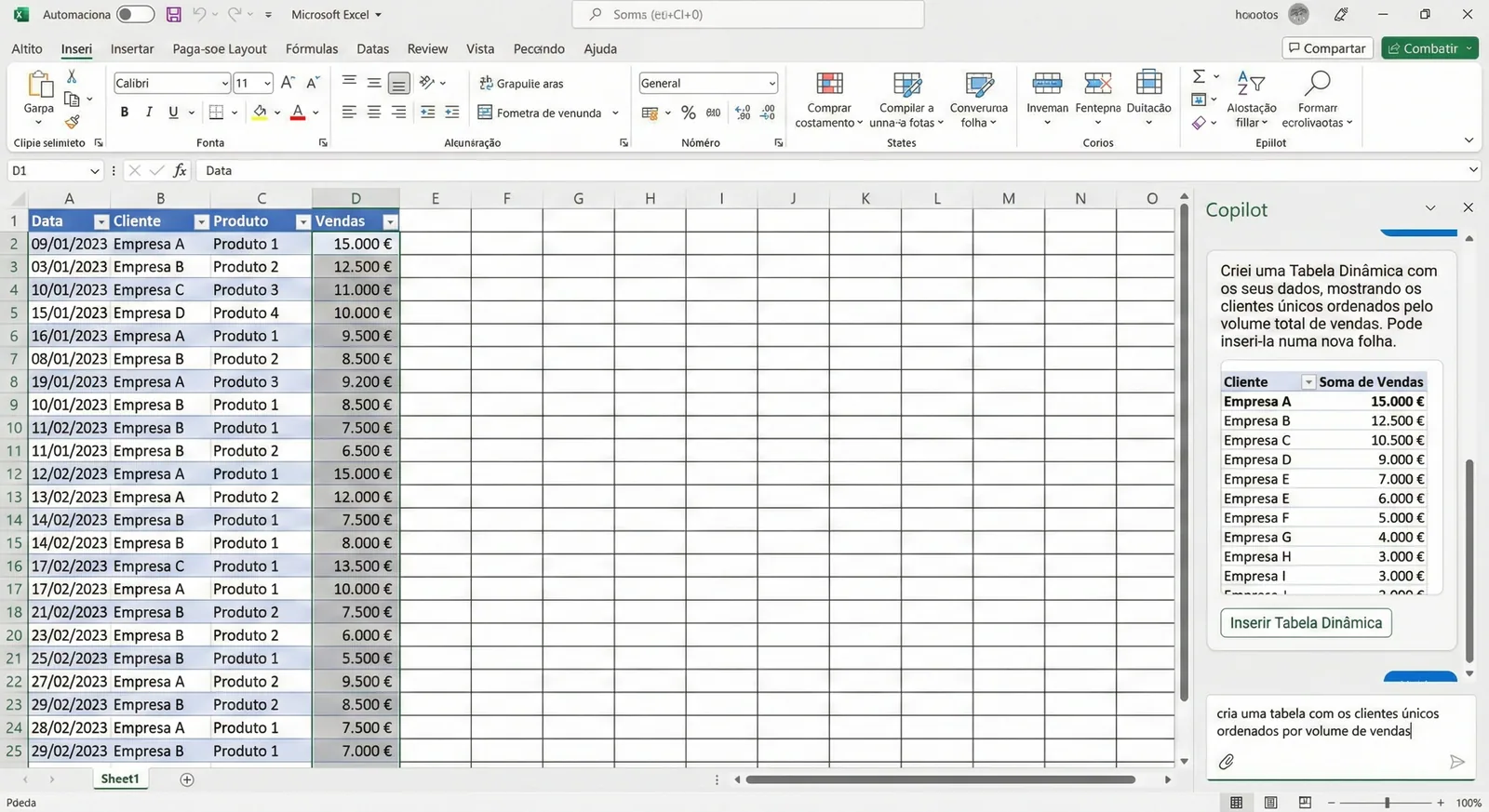
screenshot showing the Copilot side panel in Excel, with an example prompt and the AI-generated response.
How to activate and access Copilot in Excel
Copilot in Excel is not available in all Microsoft 365 subscriptions. It requires a Microsoft 365 Copilot license, which is a paid commercial add-on per user, and works exclusively in Excel Online (web version) or in the latest versions of Excel Desktop connected to the cloud.
Steps to confirm if you have access:
- Open Excel Online from Microsoft 365.
- Create or open a spreadsheet with data.
- Look for the Copilot icon in the upper right corner of the ribbon, next to the sharing buttons.
If the icon doesn’t appear, it means your organization hasn’t activated Copilot yet or your account doesn’t have the required license. In this case, contact your IT department or talk to Avantit about implementing Microsoft 365 Copilot.
Important note: Copilot works best with data structured in Excel tables (smart tables created with Ctrl+T or Insert > Table). Make sure your data is formatted as a table before starting.
Practical examples of using Copilot in Excel
1. Automatic creation of complex formulas
One of the most frequent scenarios is needing a specific formula but not remembering the syntax or the right function.
Real scenario: you have a list of sales by region and want to calculate total sales only for products in the “Technology” category sold in the “North” region.
Without Copilot, you would need to build something like:
=SUMIFS(Sales[Total], Sales[Category], "Technology", Sales[Region], "North")With Copilot: you write “calculate total sales of Technology products in the North region” and it suggests the correct formula, already adapted to your table’s column names.
The assistant also explains the logic behind the formula, which helps you learn and adapt for future cases.
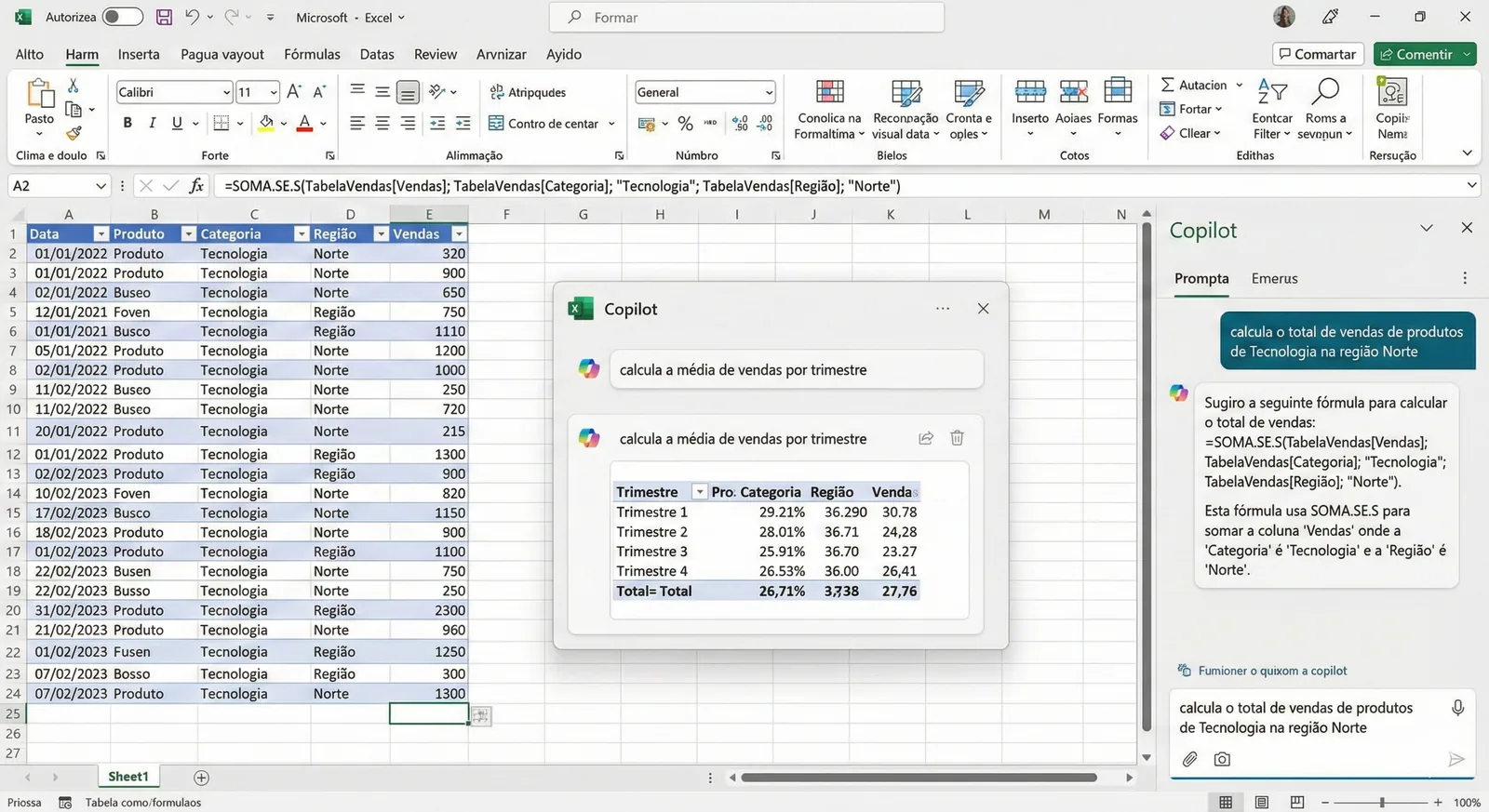
example of a request written in Copilot (“calculate average sales by quarter”) with the resulting formula applied in the cell.
2. Data cleaning and transformation
Often, the data you receive from external systems or CSV files is disorganized: dates in the wrong format, extra spaces, duplicate values, or text mixed with numbers.
Example: you receive a file with a “Purchase Date” column in the format “15-Jan-2025” but need to transform it to “01/15/2025” for integration with another system.
Traditionally, you would use functions like TEXT(), DATEVALUE(), or even Power Query.
With Copilot: you write “convert the Purchase Date column to MM/DD/YYYY format” and the assistant applies the transformation automatically, creating a new column or replacing the existing one as indicated.
Another frequent case is removing duplicates. Instead of going to Data > Remove Duplicates and manually selecting columns, you can simply ask: “remove duplicate rows based on customer email”.
3. Generating charts and visual insights
Creating informative charts requires choosing the right type (bars, lines, scatter), defining axes, and formatting legends — a process that, even for experienced users, consumes time.
Copilot can analyze your data and automatically suggest relevant visualizations.
Example: you have a table with monthly sales by product. You write “create a line chart showing sales evolution over time” and Copilot generates the chart, already with titles and basic formatting applied.
Furthermore: Copilot can identify patterns in the data and highlight them. For example, if sales of a specific product dropped abruptly in a particular month, the assistant can suggest: “Product X sales dropped 30% in September — do you want to highlight this anomaly in the chart?”
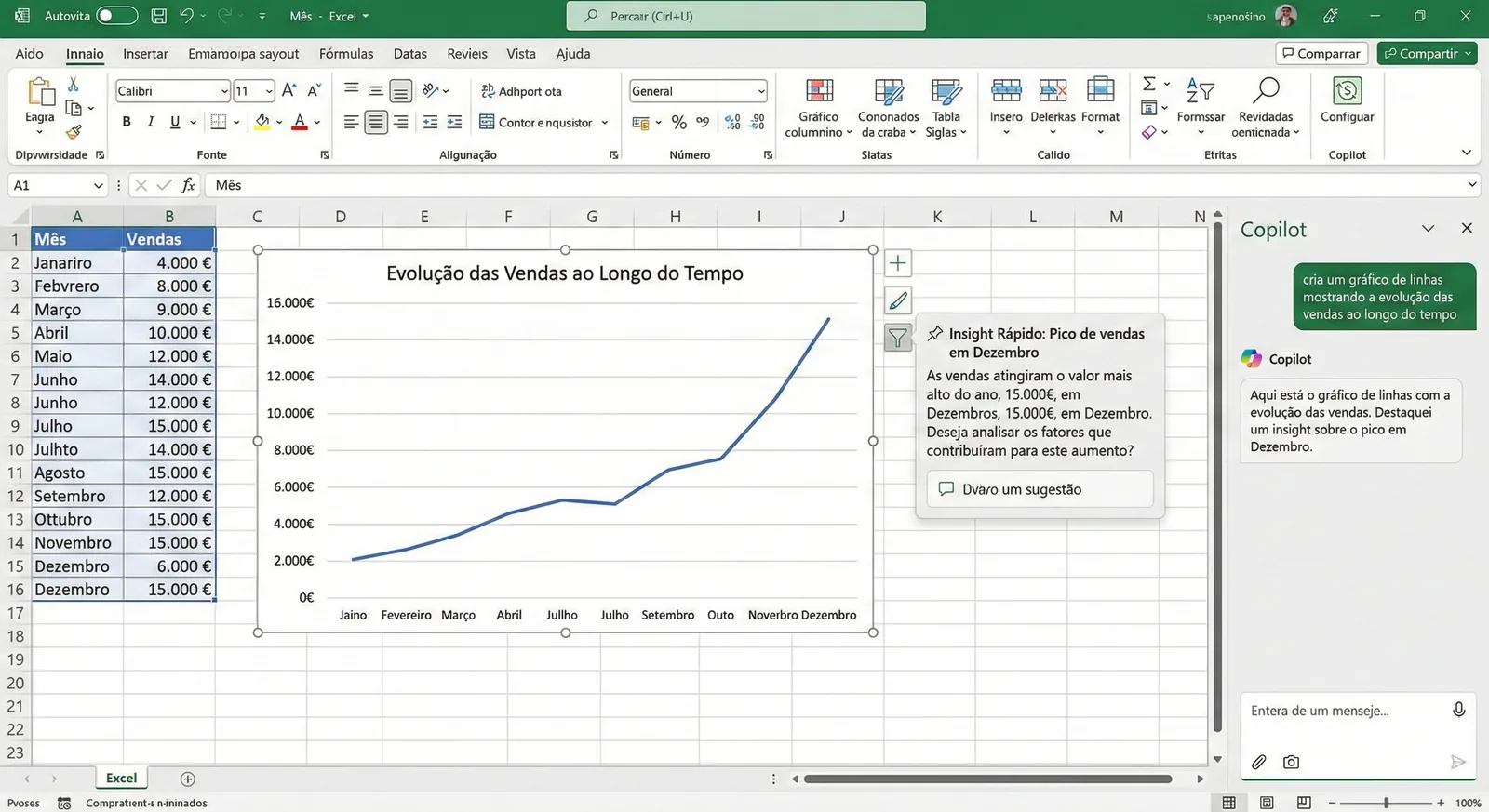
line chart created by Copilot, with a side suggestion box highlighting a relevant insight (e.g., “sales peak in December”).
4. Integration with Power BI and organizational data
For organizations already using Power BI or with data centralized in Data Lakes or SharePoint, Copilot can function as a bridge between Excel and these sources.
Although Excel alone has always supported connections to external sources (via Power Query), Copilot simplifies the process by allowing requests like:
- “Connect to the sales file in SharePoint and import data from the last quarter.”
- “Show me a sales forecast based on historical data.”
This ability to connect to organizational data seamlessly is especially valuable for finance, sales, or operations teams that need to consolidate information from multiple sources without spending hours manually configuring queries.
Note: the quality of Copilot’s results depends on the quality of your data. Well-structured tables, with clear headers and no empty cells or inconsistent formatting, produce better responses.
Best practices when using Copilot in Excel
To get the most out of Copilot, follow these guidelines:
1. Use smart tables (Ctrl+T)
Copilot works significantly better when data is formatted as an Excel table, because it automatically recognizes column names.
2. Be specific in your requests
Instead of “analyze the data”, say “calculate average sales by quarter and highlight the quarter with worst performance”.
3. Always validate results
Copilot is a powerful tool, but it’s not infallible. Review the formulas and generated data before using them in critical reports.
4. Take the opportunity to learn
When Copilot creates a complex formula or transformation, spend a few seconds understanding the logic. Over time, you’ll need the assistant less and less for recurring tasks.
Limitations and contexts where Copilot may not help
Copilot in Excel doesn’t solve everything. There are scenarios where traditional tools or other Power Platform automation solutions make more sense:
- Batch processing of hundreds of files: if you need to consolidate data from dozens or hundreds of Excel files, Power Automate or Python are more efficient.
- Complex analyses with data modeling: for advanced relational models, Power BI or relational databases remain the right choice.
- Complex macros and automations: VBA or Office Scripts still have their place when granular control over repetitive actions is needed.
Copilot is excellent for one-off tasks, quick data exploration, and accelerating individual workflows — but it doesn’t replace a well-designed data architecture.
Preparing the organization for Copilot: beyond licensing
Implementing Copilot in Excel isn’t just a matter of acquiring licenses. For the tool to bring real value, the organization needs:
1. Structured and accessible data
If data is scattered across dozens of local files without consistent naming, Copilot will struggle to help.
2. Governance and security
Copilot accesses data from the Microsoft Graph (emails, OneDrive files, SharePoint, Teams). It’s essential to ensure permissions are well defined and users only access what they should.
3. Training and adoption
The tool only brings returns if teams know how to use it. Practical training sessions with real use cases accelerate adoption.
Avantit has proven experience in implementing Microsoft 365 solutions, including adoption strategy, user training, and workflow optimization with Copilot. If your organization is planning this transition, contact us for a diagnostic session.
Conclusion: is it worth starting to use?
If you use Excel daily and have access to Microsoft 365 Copilot, it’s worth exploring. It’s not a “miraculous revolution”, but it’s a tool that, when used well, saves time on repetitive tasks and reduces friction between intention and execution.
For professionals working with data analysis, financial reporting, or operations management, Copilot can quickly become a valuable ally — as long as data is well organized and users know what to ask for.
Next steps:
- If you don’t have access yet, check with your IT department or contact Avantit to discuss implementing Copilot in your organization.
- If you already have access, open a spreadsheet with real data and try the examples from this guide.
- Also explore other Power Platform automation features for more advanced scenarios.
Copilot in Excel is one more tool in the Microsoft 365 productivity arsenal. Use it well and you’ll see the benefits.
Editorial Policy
At Avantit, we value authenticity and human expertise. This article was written and reviewed by our experts, ensuring technical accuracy grounded in real-world projects. We do not publish content generated exclusively by AI without validation by one of our consultants.
Share and Comment
Related Topics
If this sounds familiar because it is your problem, not just curiosity:
Get more from the Microsoft 365 you pay forEnjoyed this article?
Subscribe to our newsletter to receive more content like this or contact us to learn how we can implement these solutions in your company.