File and Version Chaos in Teams: The Invisible Cost Slowing Your Team Down
 Arsénio Ferraz
 "Can someone send me the final version?" is probably the most expensive question in your company. Multiplied by every project, every week and every employee, it represents lost hours, avoidable mistakes and decisions made on the wrong document. File chaos in Microsoft Teams rarely shows up in a cost report — but it's there, every single day, slowing your team down.
The problem everyone recognizes (and no one measures)
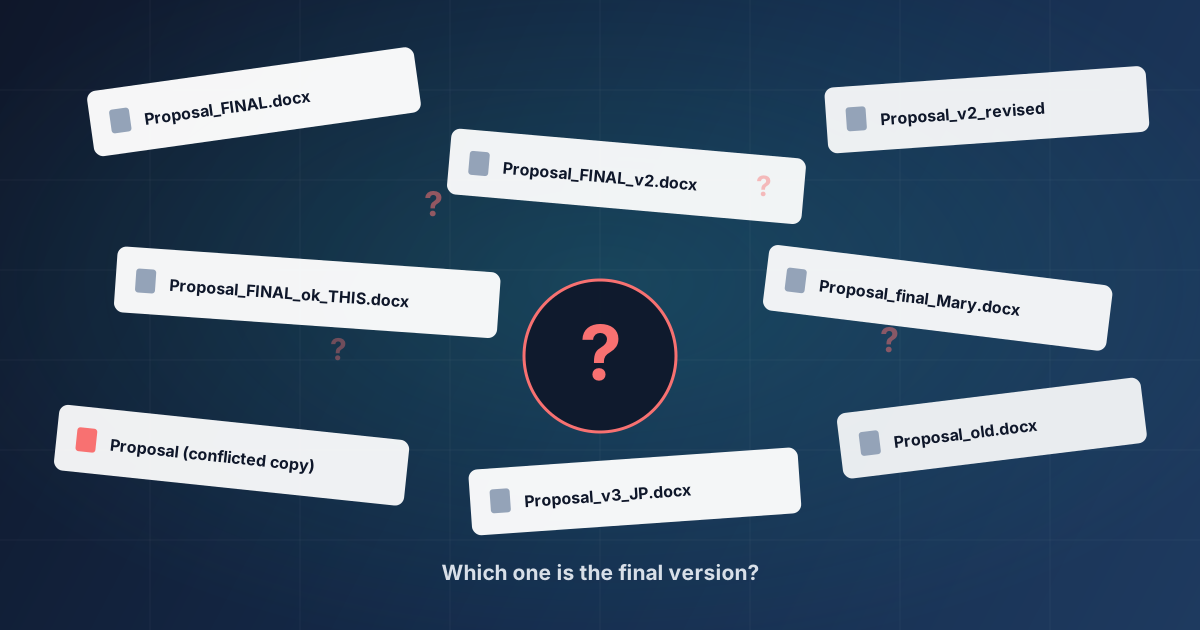
If you ask your team to find the final version of a proposal, you’ll almost certainly get five different files, each with a name that promises to be “the definitive one”:
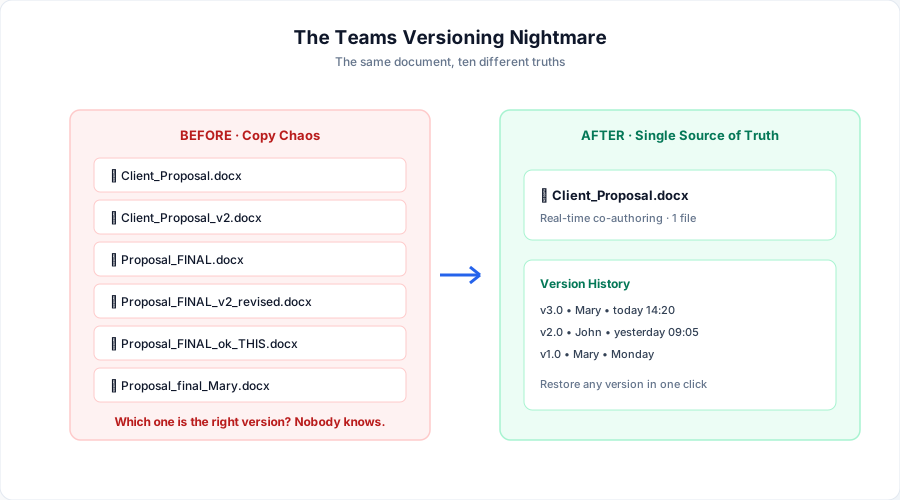
Client_Proposal_FINAL.docxClient_Proposal_FINAL_v2.docxClient_Proposal_FINAL_ok_THIS.docxProposal_final_Mary.docxProposal (conflicted copy).docx
Everyone has lived through this. It’s so common it has become an inside joke in nearly every organization. But behind the joke lies a serious business problem: when no one is sure which version is correct, the risk of getting it wrong is permanent.
This is not a technical problem. It’s a way-of-working problem — and, as we’ll see, it has a solution that requires buying nothing new. You’re probably already paying for it.
Where the chaos really comes from
Microsoft Teams was adopted at extraordinary speed. Many organizations “switched Teams on” during the pandemic and never looked back. The problem is that the tool arrived faster than the habits.
The result is always similar:
1. Teams became a chat, not a workspace. People swap files through messages, like WhatsApp. Each attachment sent in a chat creates a new isolated copy, disconnected from the original.
2. No one trusts co-authoring. Afraid of “ruining” someone else’s work, each person downloads the file, edits it on their own computer and sends it back. A new version is born that no one can reconcile.
3. There are no rules about where to save what. Some save in the chat, others in the channel, others in personal OneDrive, others in email. The same document lives in five places at once.
The key point: chaos doesn’t happen because of a lack of tools. It happens because of a lack of a simple agreement on how the team works. And that agreement is a management decision, not an IT one.
The invisible cost: how much is this costing you?
The most dangerous thing about this problem is that it’s silent. No one sends an invoice for “time lost looking for files”. But the cost is real and significant.
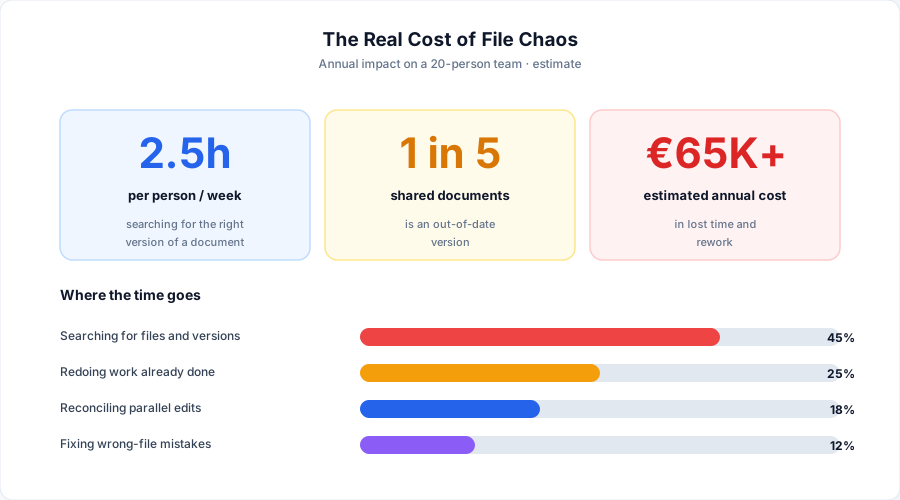
Let’s translate this into business language, with a simple example:
Example — A 20-person team
- Each employee loses, on average, 2.5 hours per week finding the right version, recreating work already done, or reconciling edits.
- That’s 50 hours per week wasted across the team.
- Over a year, this easily exceeds 2,000 hours — the equivalent of more than one full-time employee dedicated solely to fighting files.
And that’s just the time. It doesn’t include the cost of sending the wrong proposal to a client, of presenting out-of-date figures in a board meeting, or of losing a signed contract somewhere inside a shared folder.
Three real examples of how the chaos shows up
Example 1: The proposal that went backwards
A sales team finalized a proposal after two weeks of work. On sending day, someone grabbed the wrong file — an earlier version, with a price that was already out of date. The client received a figure the company couldn’t honor. The result: a difficult conversation and a squeezed margin to save the relationship.
Example 2: The two-headed report
Two employees edited the same report at the same time — each in their own copy. When it came time to merge everything, no one knew which version had the correct numbers. It took three extra hours just to reconcile work that was already done.
Example 3: The employee who left
A team member left the company. The most important documents from their projects were on their personal OneDrive, not in a shared space. Recovery was slow, incomplete, and depended on the goodwill of someone who was no longer part of the house.
None of these cases is about advanced technology. All of them are about organization — and all of them were avoidable.
The good news: the solution is already paid for
Here’s what many decision-makers don’t realize: Microsoft 365 already solves all of this. The capabilities exist, they’re included in the licenses you already pay for, and they’re simply not being used the right way.
1. A single source of truth
Each document should live in one place — usually in a SharePoint library tied to the project’s Teams channel. There are no copies. There is one file, and everyone works on it.
2. Real-time co-authoring
Several people can edit the same document at the same time, without copies and without conflicts. Changes appear live. No more “send me your version and I’ll merge it”.
3. Automatic version history
SharePoint automatically keeps every version of each file. You can see who changed what, when, and restore any earlier version in a single click. You no longer need to save “v2”, “v3” and “FINAL” — the system does it for you, invisibly.
Management insight: stopping the “_FINAL_v2” naming habit isn’t cosmetic. It’s the sign that the team has started trusting the system instead of improvising. That trust is what frees up the lost hours.
4. A predictable place for everything
When each project has a standard structure — the same channels, the same folders, the same libraries — no one has to ask “where does this go?”. The answer is always obvious.
How to make the transition (without stopping the business)
The temptation is to think fixing this requires a big revolution. It doesn’t. The approach that works is gradual and starts with what hurts most.
Step 1 — Diagnosis. Understand where documents live today and where the biggest pain is. Usually two or three projects concentrate most of the problem.
Step 2 — Define the model. Agree on a simple structure: where files go, how spaces are named, who has access to what. Simple and consistent beats complex and perfect.
Step 3 — Migrate the essentials. Move active documents into the new model, with version history switched on. The old archive can be handled later.
Step 4 — Train the people. This is the most important step and the most overlooked. People need to learn to trust co-authoring and version history. Without that, they revert to old habits within two weeks.
Step 5 — Follow up. Changing habits takes time. Support in the first few weeks ensures the new methods take root and the investment pays off.
What your team gains
When file chaos disappears, the effect is immediate and visible:
- Less wasted time. The hours previously spent searching for files return to value-generating work.
- Fewer costly mistakes. No more risk of sending the wrong version or deciding on out-of-date data.
- Faster onboarding. A new employee finds everything where it’s supposed to be, from day one.
- Guaranteed continuity. Knowledge stays in the organization, not on one person’s computer.
- More confidence. The team stops second-guessing what it’s holding and works with certainty.
Conclusion: chaos is a choice, and so is order
File chaos in Teams is not inevitable. It’s not a “cost of doing business”. It’s the result of never having made a conscious decision about how the team should work with its documents.
The good news is that fixing it doesn’t require buying new technology. It requires method, organization and someone to help the team change its habits. The return — in hours, in avoided mistakes and in peace of mind — shows up in the first few weeks.
Is your team still searching for the “final version”?
Book a Free Document Organization Assessment. In a 30-minute session, we analyze how your team works with files in Teams today and identify the three changes with the biggest immediate impact.
Editorial Policy
At Avantit, we value authenticity and human expertise. This article was written and reviewed by our experts, ensuring technical accuracy grounded in real-world projects. We do not publish content generated exclusively by AI without validation by one of our consultants.
Share and Comment
Related Topics
Keep reading
More articles on this topic.
Copilot Without Governance: The Risks of Adopting AI With No Policy
Many companies scale Microsoft Copilot and create hundreds of agents with no inventory, no lifecycle and no data policy. Here are the real governance risks — and how to fix them.
10 minEU AI Act: What Your Company Needs to Know (and Do) in 2026
A clear guide for CEOs and DPOs of European SMEs: what changes with the EU AI Act in force, what Microsoft already guarantees in M365 Copilot, and what your company still needs to do.
9 minIs Power Apps Secure? Security and Governance Guide for CTOs
Complete Power Apps security guide for IT decision-makers: DLP policies, governance strategies, GDPR compliance, access control, and best practices to protect corporate data.
9If this sounds familiar because it is your problem, not just curiosity:
Copilot governance and adoptionEnjoyed this article?
Subscribe to our newsletter to receive more content like this or contact us to learn how we can implement these solutions in your company.