


Find Any File in SharePoint: A Practical Search Guide for Teams
 Arsénio Ferraz
 An organization with thousands of documents in SharePoint has, in practice, a giant library with no index — unless people know how to search. The good news is that SharePoint has a powerful search engine built in. The bad news is that almost no one uses it beyond typing a word and hoping for the best. This guide shows, with simple examples, how to turn search into a real advantage for your team.
Note: all examples in this article are fictional and serve only to demonstrate SharePoint’s search features.
Why “finding” is a business issue
When an employee can’t find a document, one of three things happens, all of them expensive:
- They recreate the work that already existed — wasting hours.
- They use an old version — risking wrong decisions.
- They interrupt a colleague to ask where it is — multiplying lost time across two people.
Productivity studies show that professionals can spend a significant chunk of their week just looking for information. In a 20-person team, this easily adds up to thousands of hours per year. Knowing how to search well isn’t a technical detail — it’s an operational efficiency skill.
The tool that makes this possible is called KQL (Keyword Query Language), SharePoint’s search language. Don’t be put off by the name: you don’t need to be in IT to use it. Think of it as a set of “shortcuts” that tell SharePoint exactly what you’re looking for.
The basics: searching better than a single word
Most people type one word in the search box and pray. Let’s go further.
Search for a word:
invoiceSearch for an exact phrase (with quotes):
"annual report"The difference matters. Without quotes, SharePoint looks for the terms anywhere. With quotes, it looks for exactly that sequence of words. It’s the difference between “find anything similar” and “find exactly this”.
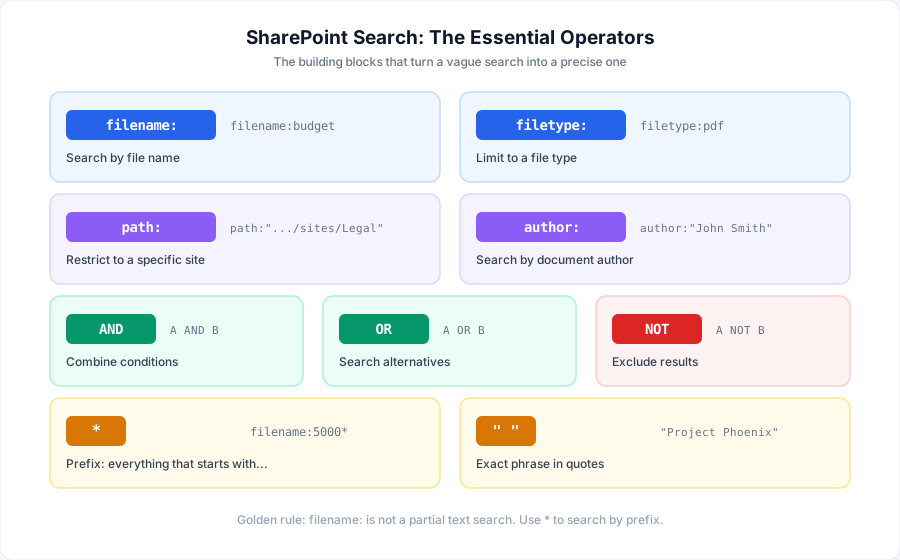
The most useful shortcut of all: search by file name
By far the most valuable property day to day is filename: — searching by the file’s name.
Example — find a budget:
filename:budgetExample — find a specific file:
filename:budget.xlsxExample — find a name with several words (use quotes):
filename:"Annual Report"Imagine a library with these fictional documents:
Budget 2026 - Final.xlsx
Budget 2026 - Draft.xlsx
Budget 2026 - Approved.xlsx
A search for filename:Budget returns all three instantly — with no need to navigate through folders.
Filter by file type
Often we know we’re after a PDF, or an Excel, or a presentation. The filetype: property handles that:
filetype:pdf
filetype:docx
filetype:xlsx
filetype:pptx
Example — find only reports in PDF:
annual report filetype:pdfThis is one of the most underrated tricks: if you know the contract you want is a PDF, filtering by type instantly removes dozens of irrelevant results.
Combining conditions: AND, OR, NOT
This is where search goes from “decent” to “powerful”. Three words do almost all the work:
AND — combine conditions (find this and that):
filename:"Project Phoenix" AND filetype:pdfOR — search alternatives (this or that):
filename:budget OR filename:forecastNOT — exclude results (this, but not that):
filename:budget NOT filename:draftThat last example is especially useful: it finds everything related to “budget” but automatically excludes drafts. It saves you the work of ignoring them one by one.
Tip for managers: teach your team just these three words —
AND,OR,NOT— and you’ve solved 80% of search problems. Nothing else “technical” is required.
The most powerful character: the asterisk (*)
The * means “everything that starts with this”. It’s known as the prefix wildcard.
Example — find everything starting with “Project”:
filename:Project*Example — find codes starting with 5000:
filename:5000*Imagine these fictional files:
Product 50001234 - Specification.pdf
Product 50001234 - Datasheet.pdf
A search for filename:5000* finds both, because the * tells SharePoint “I want terms that start with 5000”.
The most common mistake (and the most important one to understand)
Here’s the one “technical” rule worth having your team internalize. Many people assume this search:
filename:5000will automatically find Product 50001234 - Specification.pdf. Often it won’t.
Why? Because SharePoint searches through an index of terms, not like a database that hunts for fragments of text in the middle of words. If you’re after the start of a term, you need the asterisk:
filename:5000*In plain language: filename: is not the same as “search for this fragment anywhere”. When results don’t appear, the culprit is almost always a missing asterisk. This single idea prevents most search frustration.
Find by author, title or location
SharePoint lets you search by other useful properties:
By author:
author:"John Smith"By document title (different from the file name):
title:"Annual Report"By specific site (very useful in organizations with many sites):
filename:contract path:"https://contoso.sharepoint.com/sites/Legal"That last example is gold for large organizations: if you know the contract is in the Legal area, restricting by path: avoids results coming from dozens of other sites. (Replace contoso with your organization’s domain.)
Putting it all together: precise searches for the real world
The real power shows up when we combine several conditions. Some practical, fictional examples:
Excel budget, no drafts:
filename:budget* AND filetype:xlsx NOT filename:draftReports in PDF or Word:
filename:report AND (filetype:pdf OR filetype:docx)A specific project, in PDF, in a specific area:
filename:"Project Phoenix" AND filetype:pdf AND path:"https://contoso.sharepoint.com/sites/Projects"Parentheses, just like in maths, help control the logic when we mix AND, OR and NOT.
The foolproof strategy when “I can’t find anything”
This is perhaps the most valuable part of this guide. When a search doesn’t return what you expect, don’t give up or type random variations. Build the search in layers, from broad to precise.
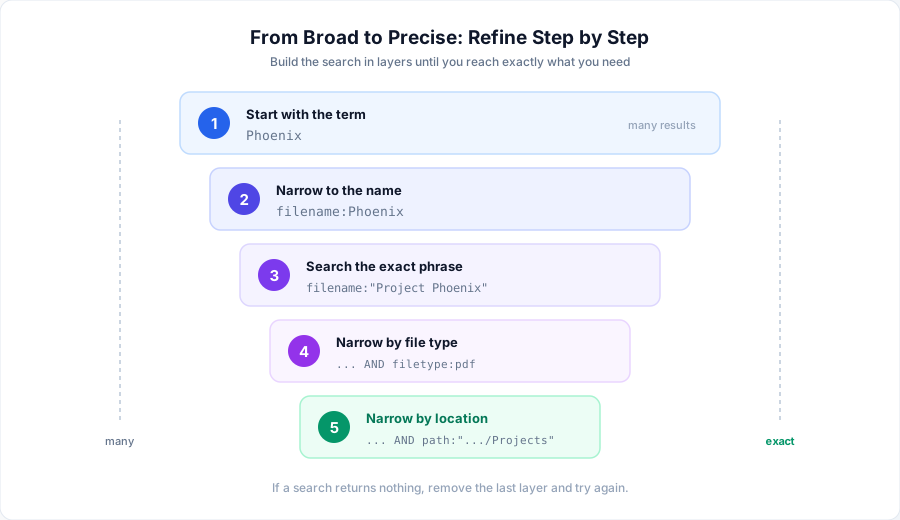
Step by step, with a fictional example:
- Start with the term:
Phoenix - Narrow to the name:
filename:Phoenix - Search the exact phrase:
filename:"Project Phoenix" - Narrow by file type:
filename:"Project Phoenix" AND filetype:pdf - Narrow by location:
... AND path:"https://contoso.sharepoint.com/sites/Projects"
If at any step the results disappear, you immediately know which condition removed them. Just remove the last layer and try again. It’s a simple method anyone on the team can follow.
Quick reference table
| Goal | Search |
|---|---|
| Search text | invoice |
| Exact phrase | "annual report" |
| File name | filename:report |
| Phrase in the name | filename:"annual report" |
| Prefix in the name | filename:report* |
| PDF only | filetype:pdf |
| Author | author:"John Smith" |
| Specific site | path:".../sites/Finance" |
| Combine (AND) | filename:report AND filetype:pdf |
| Alternatives (OR) | filename:report OR filename:invoice |
| Exclude (NOT) | filename:report NOT filename:draft |
What your organization gains by teaching this
Teaching your team to search well costs one training session. The return is permanent:
- Less wasted time. People find documents in seconds, not minutes.
- Fewer interruptions. They stop asking colleagues “where is file X?”.
- Fewer mistakes. They find the right version, in the right place, first time.
- More value from the investment. The SharePoint you already pay for gets used as the knowledge manager it is, not a chaotic hard drive.
Management insight: effective search is the “compound interest” of document organization. The better the structure (consistent names, well-defined sites), the more powerful search becomes. The two reinforce each other.
Conclusion: the index was there all along
SharePoint was never a bad place to store documents. The problem is that most organizations use 10% of its search potential — and then complain that “I can never find anything”.
The truth is the index was always there. All that was missing was the key to unlock it: a handful of simple operators (filename:, filetype:, path:, AND, OR, NOT, *, "") and the habit of building the search in layers. None of these concepts requires a technical profile. They only require someone to show them to the team.
Want your team to stop wasting time hunting for files?
Book a SharePoint Productivity Session. In a hands-on training, we show your team how to find any document in seconds and how to structure information so that search always works in your favor.
Editorial Policy
At Avantit, we value authenticity and human expertise. This article was written and reviewed by our experts, ensuring technical accuracy grounded in real-world projects. We do not publish content generated exclusively by AI without validation by one of our consultants.
Share and Comment
Related Topics
Keep reading
More articles on this topic.
An Intranet in Days, Not Months: How SharePoint Templates Accelerate Implementation
How to use industry-specific SharePoint templates to launch a professional intranet in days. Template vs custom comparison, AvantIT's 22 templates, and the implementation process.
8 minSharePoint in 2026 Is Not a File Manager — It's Your Company's Brain
Learn how to use SharePoint as a knowledge management system in 2026: Microsoft Semantic Index, Copilot, and 4 practical use cases for SMEs that want to adopt AI successfully.
7 minSharePoint On-Premises to Cloud: Migration Strategy Guide for IT Leaders
A practical decision framework for CTOs and IT Directors planning SharePoint migration to Microsoft 365. Real timelines, costs, and risk mitigation strategies.
10 minIf this sounds familiar because it is your problem, not just curiosity:
SharePoint and Modern Work servicesEnjoyed this article?
Subscribe to our newsletter to receive more content like this or contact us to learn how we can implement these solutions in your company.